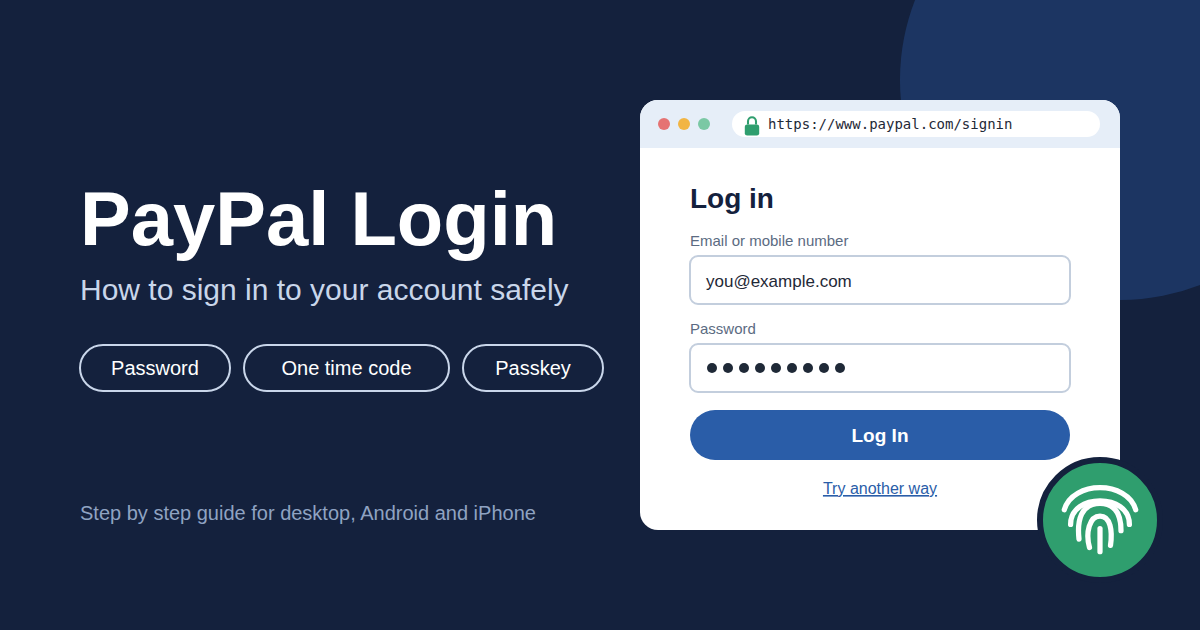
PayPal login sounds like the simplest thing in the world. You type your email, type your password, and you're in. But PayPal now gives you several ways to sign in, including one time codes, app approvals and passkeys. The screen you see can change depending on your device and how your account is set up.
Getting this right matters more than most people think. PayPal is one of the most copied login pages on the internet, and scammers build lookalike pages to steal account details. This guide covers every official way to sign in, how to fix a forgotten password, and how to make sure you're on the real site. One quick note: this blog isn't PayPal and isn't connected to it, so always do the actual signing in on paypal.com or the official app.
PayPal Login Options You Can Choose From
When you open the PayPal sign in page, you aren't stuck with just a password. Depending on your account settings, you'll see some or all of these options:
- Email and password: the classic method, and the one every account can use.
- Mobile number: if you've already set your phone number up for login, type it into the login box. If not, use the link to log in with email instead.
- One time code by text or email: PayPal sends a code to your phone or inbox, and you enter it instead of your password.
- Approve on your phone: choose this option, open the PayPal app, tap Yes on the prompt, then tap the two digit number shown on your computer screen.
- Face, fingerprint or PIN (passkey): you sign in the same way you unlock your phone or laptop.

Tip: If the method PayPal offers first doesn't work for you, don't start resetting things straight away. Look for “Try another way” or “More options” on the login screen. That's where the code, app approval and passkey options usually sit.
Passkeys: The Easiest Way to Sign In to PayPal
A passkey replaces your password with the lock you already use on your device. On an iPhone that means Face ID, Touch ID or your passcode. On Android it's your face or fingerprint scan, PIN or pattern, depending on what you've set up. Passkeys are a login standard created by the FIDO Alliance and the World Wide Web Consortium, and PayPal supports them on Apple and Google devices.
The big advantage is phishing resistance. A passkey is tied to PayPal's real website and app, so a fake login page can't use it. PayPal also says your biometric data isn't shared with it and never leaves your device. Your fingerprint stays on your phone.
To create one, log in to PayPal on your phone using Safari or Chrome with your usual details. If passkeys are available on your account, you'll be asked to unlock your device to create one. Once it's set up, passkeys saved in iCloud Keychain or Google Password Manager can be used on your other devices signed in to the same Apple or Google account. If you're on a device PayPal doesn't recognise, it may still ask for a second check, such as a text code.
How to Log In to PayPal on a Computer
Signing in on a laptop or desktop takes under a minute once you know the steps.
- Open your browser and type paypal.com into the address bar yourself. Don't click ads or random search results for “PayPal login.”
- Check the address bar. The URL should start with https:// and “paypal.com” should come right after the “www.” part.
- Click Log In at the top of the page.
- Enter your email address or mobile number and click Next.
- Type your password, or pick another option such as a one time code, approving on your phone, or a passkey if your browser offers it.
- If you've turned on 2 step verification, enter the code from your authenticator app or text message.
Once you're through, you'll land on your PayPal dashboard. From there you can check your balance, recent activity and settings.

Forgot Your PayPal Password? Here's How to Reset It
PayPal won't show you your current password, even after you log in. That's a security choice. If you've forgotten it, you create a new one instead.
- Go to the PayPal login page.
- Click Forgot password?
- Enter the email address linked to your PayPal account and click Next.
- Choose how you want to complete the security check, then click Next.
- Once you pass the check, create a new password.
Your new password needs to be 8 to 20 characters long and include at least one number or symbol. If you've forgotten which email you used, there's a Forgot email? link on the same login page. And if everything looks right but login still fails, clear your browser's cache and cookies, then try again. That fixes more login problems than you'd expect.
How to Sign In to PayPal on Android or iPhone
On mobile, most people use the PayPal app, though logging in through Safari or Chrome works too. The app has one nice extra. It's what you use to approve logins on other devices, so it's worth installing even if you mostly use PayPal on a computer.
- Download the PayPal app from the Apple App Store or Google Play. Make sure you're installing the official PayPal app, not a lookalike with a similar icon.
- Open the app and enter your email address or mobile number.
- Enter your password, or use Face ID, a fingerprint or a PIN if you've set up a passkey.
- Complete any extra security check PayPal asks for, such as a code sent by text.
- If you forget your password, tap Forgot password? in the app. The reset steps are the same as on the website.

Good to know: You can't set up 2 step verification inside the PayPal app. PayPal only lets you do that in a web browser, so switch to your phone's browser or a computer for that part.
PayPal Login Security Features Worth Turning On
PayPal gives you several tools to protect your account. None of them help unless you actually switch them on.
- 2 step verification: adds a code from an authenticator app, such as Google Authenticator or Microsoft Authenticator, every time you log in.
- Passkeys: let you log in with your face, fingerprint or PIN, and fake websites can't use them.
- App login approval: the two digit number match makes it harder for someone else to approve a login by accident.
- One time codes: a backup way in if you're locked out of your password.
- Lost device protection: if your phone is stolen, the passkey on it can't be used without your face, fingerprint or PIN, and you can still log in elsewhere with your password or a one time code.
To turn on 2 step verification in a browser, click the Settings icon next to Log Out, open Security, and click Set Up next to 2 step verification. Then choose “Use an authenticator app” and follow the steps. Be careful before turning text based verification off, though. PayPal says that if you currently use text codes and turn them off, you can't turn text verification back on later.

Even with all of this, your account is only as safe as your habits. PayPal says it only asks for your password on its own login page. Its real emails address you by your first and last name or your business name, never “Dear user.” If an email or text looks off, don't click anything. Forward it to phishing@paypal.com and delete it. Use a unique password, and never share login codes with anyone, including people claiming to be PayPal support.
Frequently Asked Questions
How do I log in to my PayPal account?
Go to paypal.com, click Log In, and enter your email address or mobile number followed by your password. You can also choose a one time code, approve the login in the PayPal app, or use a passkey. If 2 step verification is on, you'll enter that code last.
Can I log in to PayPal without a password?
Yes, in most cases. You can ask PayPal to text or email you a one time code, approve the login from the PayPal app, or use a passkey with your face, fingerprint or PIN. Which options appear depends on your device and account setup.
What should I do if I forgot my PayPal password?
Click “Forgot password?” on the login page, enter your PayPal email, and complete the security check. PayPal will then let you create a new password of 8 to 20 characters that includes at least one number or symbol. You can do this on the website or in the app.
Why can't I log in to my PayPal account?
The most common causes are a mistyped email, a wrong password, or a security check PayPal wants you to complete. Try clearing your browser's cache and cookies, or switch to another login method using “Try another way.” If you're still stuck, use the Contact Us page in PayPal's official Help Center rather than phone numbers found on random websites.
How can I tell if a PayPal login page is real?
Check the address bar first. A real PayPal page starts with https:// and has “paypal.com” right after the “www.” part. An address like paypal.secureaccount.net is fake, because the real domain there is secureaccount.net. When in doubt, close the page and type paypal.com yourself.
Can I turn on PayPal 2 step verification in the app?
No. PayPal only lets you set up 2 step verification in a web browser, not the PayPal app. Log in on a computer or your phone's browser, then go to Settings and open Security to set it up.
Conclusion
PayPal login is easy once you know your options. You can stick with a password, or switch to a passkey and log in with your face or fingerprint. If you get locked out, the “Forgot password?” flow and the one time code options will usually get you back in within a few minutes.
The bigger risk isn't forgetting your password. It's typing it into the wrong website. Always go to paypal.com directly or use the official app, and turn on 2 step verification or a passkey. Treat any unexpected email that asks you to log in as suspicious until you've checked it yourself.